How to Do an Email Lookup and Reach Decision-Makers (B2B Guide)
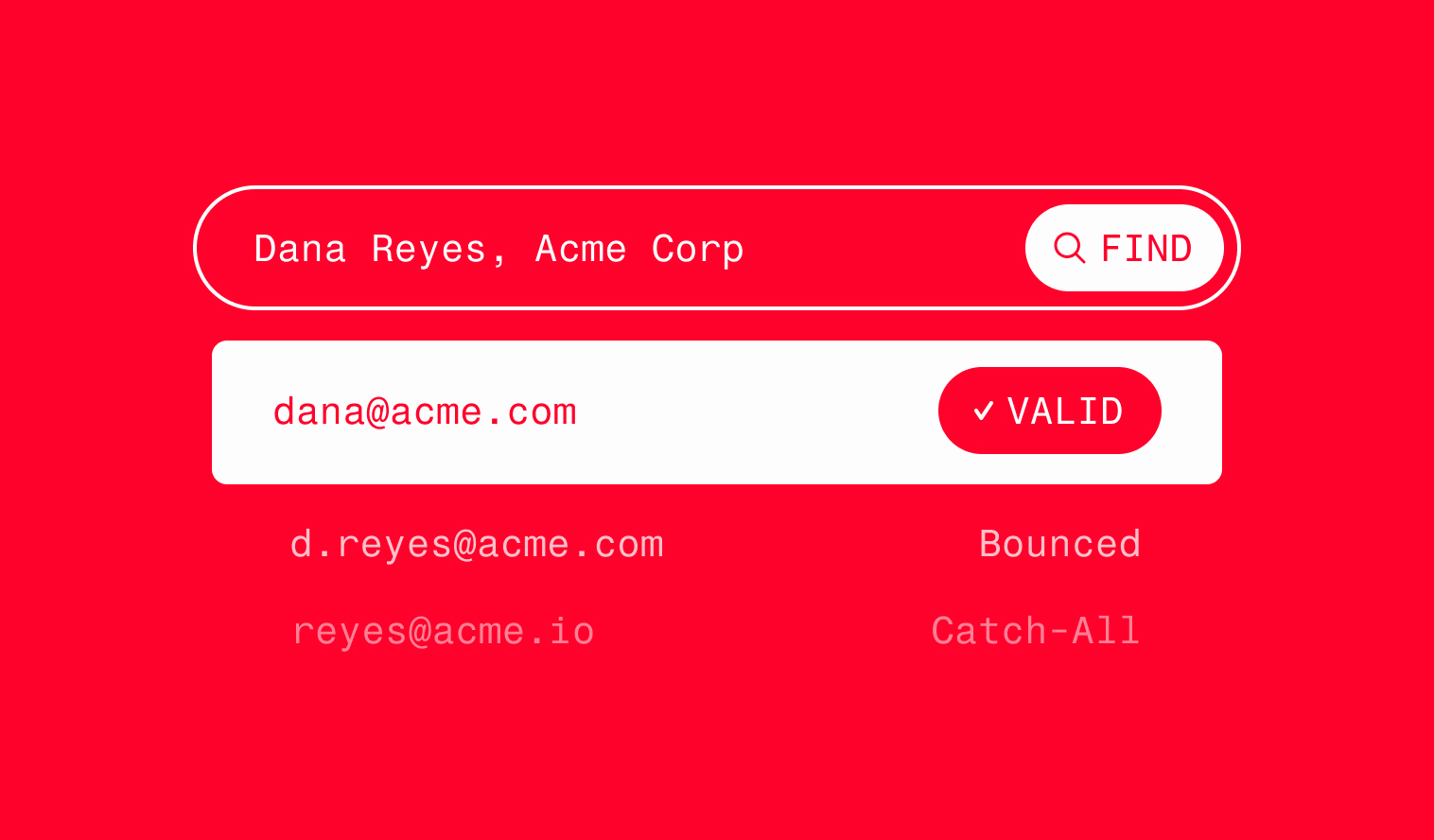
You’ve found the decision-maker, built the address from the team’s email pattern, and hit send. A minute later, it bounces.
If you build your own lists, you know that feeling.
One bounce looks harmless, but bounces drag down your sender reputation, and every email from that domain pays for it. It keeps happening because a found address isn’t always a deliverable one, which is why a good email lookup ends in verification every time.
This guide covers:
- A 6-step lookup method with copyable templates
- Tool criteria, verification rules, and catch-all handling
- Compliance basics before you hit send
P.S. Rather skip list building entirely? We run it as a managed program and have booked 30,000+ meetings since 2015. Book a call.
TL;DR
- Forward lookup (name + company → email) builds prospect lists. Reverse lookup (email → name, role, company) qualifies leads.
- Find the email pattern at a domain first. One confirmed address often gives you the format for the whole team.
- Verify every address before it touches a sequence. “Found” does not mean “deliverable.”
- Treat catch-all and unknown results as unconfirmed. Send them in small batches, apart from verified contacts.
- Finding an email is usually legal. The law regulates how you email it.
What is an email lookup?
An email lookup covers two jobs: finding someone’s email address, or identifying who owns an address you already have. The two directions share one name, which is why search results mix prospecting tools with fraud tools.
An email lookup is the process of finding or confirming someone’s email address, or identifying who owns an address you already have. B2B teams use forward lookups (name + company → email) to build prospect lists and reverse lookups (email → name, role, company) to qualify leads. Every reliable lookup ends with verification before you send.
Here’s the whole method in six lines:
- Identify the contact and their company domain.
- Find the domain’s email pattern.
- Run the name through a finder tool or B2B database.
- Verify the address (syntax, MX record, mailbox check).
- Treat catch-all or “unknown” results as unconfirmed.
- Log the email with its source and date in your CRM.
Forward vs. reverse email lookup: which you need
Most of the confusion comes from the shared name. Half the search results are fraud and OSINT tools that identify who sits behind an address. The other half are prospecting tools that find and verify work emails. Pick the direction that matches your job.
Building outbound lists? Start with forward lookup, which is the core of this guide. Handling inbound leads or messy CRM records? Jump to the reverse lookup section.
How to look up an email address in 6 steps
This is the core workflow. Each step reduces bounce risk, so skipping one shows up later as a deliverability problem. Run the steps in order, and you’ll know exactly where a bad address slipped through.
What you need before you start:
- A defined buyer profile (Step 1 covers it)
- A prospect source such as LinkedIn Sales Navigator
- An email finder or B2B database (or the manual methods further down)
- An email verifier, either built into your finder or standalone
- A CRM or spreadsheet to log results
Step 1: Define who you’re looking for
Lookups go wrong when you start with a domain dump instead of a defined buyer. A one-line ICP stops you from verifying hundreds of emails for people who’ll never buy.
- Write the ICP as a filter. Example: “VP Marketing at SaaS companies with 50 to 500 people hiring SDRs.” That gives you industry, size, title, and trigger in one line.
- Shortlist named contacts first. LinkedIn Sales Navigator is the standard tool for this. Look up emails only after you know who you want.
- Prioritize decision-makers over generic inboxes. Never prospect role addresses like info@ or sales@.
Expected result: a shortlist of named people at target companies, ready for lookup.
Pipeline still running on referrals, with nobody free to build lists? This is the step a managed program takes off your plate. Key Outreach handles ICP definition and list building. We pull from LinkedIn Sales Navigator, Apollo, Seamless, Winmo, and a proprietary 60M+ contact database. We build fresh, targeted lists weekly instead of buying static ones. Lists are one part of the full outbound system we run for clients.
Step 2: Find the company domain and email pattern
Most companies use one consistent email format. Confirm a single real address at a domain and you can often predict the rest of the team’s. This is also the heart of finding an email by name: you’re turning a name plus a domain into a likely address.
Template: common B2B email patterns
- Confirm the domain from the company’s website footer. Watch for separate email domains after rebrands or acquisitions.
- Find one confirmed colleague address. Check press pages, blog author bios, or the contact page to identify the pattern.
Expected result: a short list of candidate addresses per contact, ranked by the pattern you confirmed. Treat them as guesses until Step 4.
Step 3: Run the lookup, tool or manual
You have two routes. Tools are faster and pair finding with verification. Manual search works for a handful of high-value contacts, and we cover it in its own section below.
- Tool route: enter name + domain into a finder or B2B database. Export the result with its confidence or status field.
- Bulk route: upload a CSV of names and domains. Most finders support bulk and API.
- Keep the source of every email. You’ll need it for GDPR requests (see the compliance section).
Expected result: an email per contact, plus a status field and a recorded source.
Step 4: Verify every address before sending
“Found” is not the same as “deliverable.” A verifier checks four things: the syntax is valid, the domain exists, MX records (the DNS records that route mail) are present, and the server confirms the mailbox. That last check happens without sending an email.
Verification-status decision table:
Expected result: every record carries a status, and only “valid” records move forward.
Step 5: Handle catch-all and unknown results
Catch-all domains are where most “verified” lists fail. The server accepts every address, so the verifier can’t confirm the mailbox. Your job is to decide whether the risk is worth taking.
- Raise confidence with a second signal. The address matches a confirmed pattern at the same domain, and a second data source returns the same address.
- Send catch-alls in small batches, separate from verified contacts. Watch bounces before you scale.
- Never let catch-alls make up the bulk of a campaign.
A simple bounce budget: industry guidance commonly cites keeping hard bounces under about 2%. Treat that as guidance, not a hard rule. Multiply your batch size by 0.02, and pause the batch if you exceed that number. In a 50-contact catch-all batch, a second bounce means stop and review.
Expected result: catch-all contacts go out in controlled batches that protect your sender reputation.
Step 6: Log, enrich, and date-stamp the record
A lookup only helps if the next person can trust it. Clean, auditable records also make CRM hygiene and GDPR requests much easier to handle.
Template: minimum fields per looked-up contact
- Email, verification status, verification date
- Source (tool, database, or manual)
- Pattern used (if inferred)
- Title, company, LinkedIn URL
- Last contacted date
Expected result: a contact record anyone on your team can trust, and one you can re-verify on a schedule.
Manual email lookup methods without a tool
Some contacts, such as founders, executives, and niche firms, don’t appear in any database. Free manual search can still surface their addresses. Manual finds still need a verifier pass before you send.
Search operator templates (copy and swap in your names):
"@acme.com" "Jane Doe"
site:acme.com "@acme.com"
"Jane Doe" "acme.com" email
site:linkedin.com/in "Jane Doe" "Acme"
- The
site:acme.com "@acme.com"query surfaces any published addresses and reveals the company’s pattern. - The LinkedIn query confirms the person’s current role before you guess an address.
Other manual sources:
- Company contact, team, and press pages
- Podcast show notes, conference speaker pages, and guest posts with author bios
- Public filings or press releases listing media or IR contacts
- The prospect’s own newsletter or personal site
Email search lookup tools: what to compare
Tools differ less in whether they can find emails and more in data freshness, verification depth, and catch-all handling. Compare them on criteria rather than a ranked list, then test them on your own market. Finders are one layer of a wider stack of sales prospecting tools, so check how each one connects to the rest.
Tool categories to know:
- Email finders (e.g., Hunter, Icypeas): name + domain → email
- B2B contact databases (e.g., Apollo, Seamless): searchable contacts with filters
- Prospect identification (LinkedIn Sales Navigator): finds the right people, then you pair it with a finder
- Standalone verifiers: clean lists you already have
- Reverse lookup and OSINT tools: identity and fraud checks, not list building
Free vs. paid lookup tools
Free tiers work well for testing accuracy on your ICP. The trade-off is limits and depth. That applies to free reverse lookup tools and free finders alike: most offer a limited monthly allowance, shallower verification, and weaker catch-all handling.
- Run a 20-contact accuracy test on the free tier before you buy. Use contacts whose real addresses you already know.
- Score the results on found rate, verification status accuracy, and how many catch-alls come back unresolved.
Reverse email lookup for B2B research
Most reverse lookup content targets consumer people-search. B2B teams need a narrower use: understanding who is behind an address in a professional context. Use it to understand business roles, and leave private lives alone.
B2B use cases:
- Qualify an inbound demo request. Is jdoe@company.com a VP at a target account or a student?
- Spot fake or disposable signups before they pollute your CRM. An address with no digital footprint is itself a signal.
- Enrich thin CRM records with role, company, and LinkedIn URL.
- Map a forwarded reply. Identify a new stakeholder who appears in a thread.
Reverse lookup checklist:
- Check the domain. Is it a company domain or free webmail?
- Visit the domain’s website to confirm the company and its size.
- Search the full address in quotes in Google.
- Run it through an enrichment or reverse lookup tool for name and role.
- Confirm the role on LinkedIn before you act.
- Record only professional data you need. Skip personal details.
Expected result: a confirmed name, role, and company for the address, or a clear signal that it isn’t worth pursuing.
A found email isn’t a sendable email
Inbox providers judge your sender reputation partly on bounces and spam complaints. A bad lookup doesn’t just waste one send. It punishes every email you send afterward. Most lookup guides skip this link.
- Follow mailbox-provider rules. Authenticate with SPF and DKIM and keep spam complaint rates low. Google’s bulk sender guidelines set 0.3% as the ceiling. Support one-click unsubscribe at bulk volume.
- Keep hard bounces minimal. Industry guidance commonly cites staying under about 2%.
- Send from a separate sending domain, never your primary. Keep cold emails text-only. Warm new domains for roughly 2 to 3 weeks and ramp volume gradually.
- Re-verify before every campaign, not only at the moment of lookup. Contacts change jobs and mailboxes get closed.
Key Outreach builds the deliverability infrastructure first: dedicated sending domains (never your primary), text-only emails, and inbox setup during weeks 1 to 3 of onboarding and domain warm-up. The first email goes out in week 4. Key Outreach holds the #1 Agency spot on SmartLead 2025, with the highest reply rates among 5,000+ SmartLead users. Once the list is clean, put these email prospecting tips to work on the copy and targeting.
Compliance rules for emailing looked-up addresses
Finding an email is usually legal. How you use it is what’s regulated. This table is a quick orientation, not legal advice. Check the rules for every region you send to.
This is why Step 3 says to keep every email’s source. Under GDPR you may need to tell a recipient where you got their address. A logged source and date make that a two-minute answer.
Build in-house, DIY, or go managed?
You can run these six steps yourself, hire for them, or hand them to a managed team. The right choice depends on who has the time and how fast you need meetings. Here’s the trade-off.
Two case studies show what managed programs can book. NEWMEDIA.COM, a digital agency, booked 65+ meetings at 31x ROI. Remirx Logistics, a 3PL, booked 100+ meetings at 23x ROI and $500K+ revenue. Across all programs, Key Outreach has booked 30,000+ meetings and influenced $170M+ in revenue since 2015.
Terms: a six-month initial commitment, then month-to-month, with 60-day notice to cancel. Our guarantee: we’ll 10x your pipeline during the pilot, or keep working for free until we do.
Done researching? Key Outreach runs the whole system
You now have the full lookup method: define the buyer, find the pattern, run the lookup, verify, handle catch-alls, and log the record. Skipping any of those steps puts your sending domain at risk, and your pipeline depends on that domain.
Key takeaways:
- Pick the right direction. Forward lookup builds prospect lists from name + company. Reverse lookup qualifies inbound leads and cleans CRM records from an address.
- Verify before every send. Delete invalid, disposable, and role-based addresses. Hold unknowns. Send catch-alls in small batches against a roughly 2% bounce budget.
- Protect your sender reputation. Use a separate sending domain, text-only emails, SPF and DKIM, and a 2 to 3 week warm-up. Re-verify before each campaign.
- Log source and date, and know the law. CAN-SPAM, GDPR, and PECR govern how you email looked-up addresses. A recorded source makes compliance requests easy to answer.
Prefer a team that runs the whole system for you? Key Outreach handles ICP, lists, copy, sending, and booked meetings, so your team can focus on closing. Book a call and you’ll leave with a clear plan for what a managed program could book for you.
FAQs
What is a reverse email lookup?
This kind of lookup starts with an email address and returns the name, role, company, and professional profiles linked to it. B2B teams use it to qualify inbound leads, enrich CRM records, and spot fake signups. Confirm results on LinkedIn before acting.
How do I verify an email address before sending?
Run it through an email verifier that checks syntax, domain, MX records, and the mailbox itself. Send only “valid” results. Delete invalid, disposable, and role-based addresses, and hold unknown or catch-all results until you can confirm them.
What is a catch-all email address?
A catch-all domain accepts mail for any address, so a verifier can’t confirm the specific mailbox exists. Treat these results as unconfirmed. Send them in small batches, separate from verified contacts, and watch bounces before you scale.
Can I do an email lookup for free?
Yes. Free finder tiers and manual search operators both work on a small scale. Expect monthly limits, shallower verification, and weaker catch-all handling. Test accuracy on 20 contacts you already know before you rely on any tool.
Is it legal to email an address found through lookup?
Finding an address is usually legal. Laws like CAN-SPAM, GDPR, and UK PECR regulate how you use it. Include an opt-out, identify yourself, and keep a record of your source. This isn’t legal advice.